
Layered Mode
The default for most wallpapers. Preserves depth across the scene so you can adjust how far the clock sits behind foreground and middle-ground details.
Depth effect
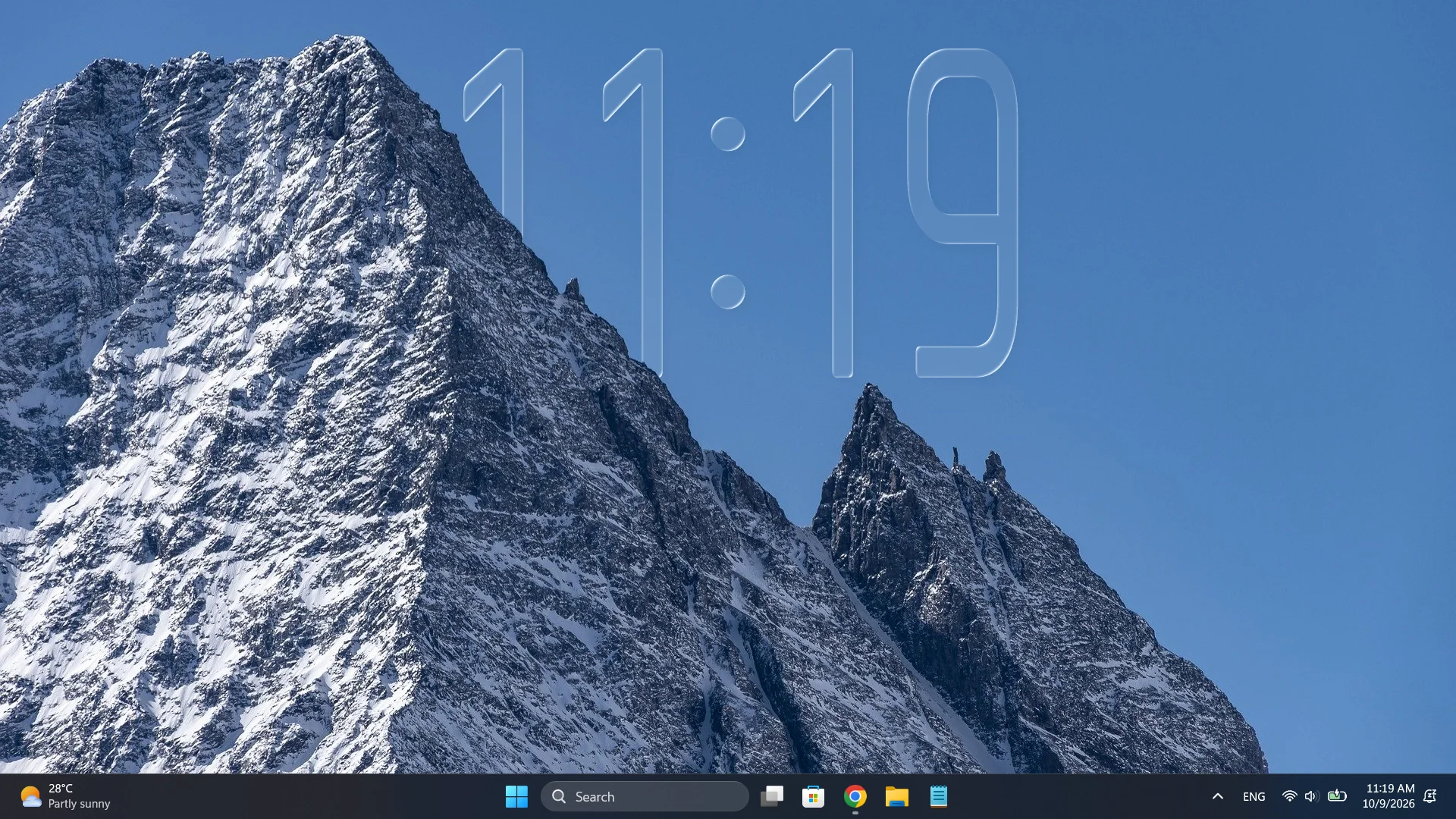
Depth Effect can hide parts of the clock behind the foreground of your wallpaper. The result feels more like a scene than a widget placed on top.
Choose the right mode
Layered Mode is the default and recommended starting point for most wallpapers. Try Object Mode when a distinct foreground subject should cover the clock more completely. 2D Art is a separate toggle, not a third depth-mode selection.
The default for most wallpapers. Preserves depth across the scene so you can adjust how far the clock sits behind foreground and middle-ground details.
An alternative for a distinct person, car, character or object that should appear in front of the clock. It is not always the best fit for a whole landscape.
Try this separate option when complex illustrated subjects produce incorrect or hollow cutouts, especially in Object Mode. Turn it off again if the result is worse.
Fine-tuning depth
Open Settings → Depth to adjust Widget depth. In Layered Mode, lower values bring the clock forward and higher values place more of the scene in front. In Object Mode, the slider fine-tunes the foreground edge. Lens Depth is a different control for the Prism glass.
Too much of the time disappearing? Lower Widget depth to bring the clock forward, or lower Hidden area limit so the visibility safeguard intervenes sooner. You can also move the clock away from the foreground.
DepthTick attempts a one-time depth adjustment for a newly generated mask. It may leave the current value unchanged if there is too little useful foreground behind the clock. You can refine the result manually; moving the clock or restarting the app does not continuously overwrite your adjustment.
Depth troubleshootingCompare depth modes
The modes change how wallpaper depth is interpreted. Neither mode replaces your wallpaper or limits the clock's visual customization.
Portraits, characters, cars, buildings and clear objects, plus landscapes with well-defined layers and visible separation.
Flat patterns, dark or low-contrast scenes, abstract art without a clear subject, and smooth gradients can be harder to interpret. Solid colors, smooth gradients and images with insufficient depth evidence may be skipped; the clock still works.
Keep it looking right
With Auto-generate on wallpaper change enabled, DepthTick starts preparing depth after wallpaper changes settle. Unsupported images may be skipped, and rapid slideshows pause depth processing. Cached masks are reused when they still match the wallpaper, monitor and depth settings. Use Refresh Depth Effect when the overlap looks incorrect or when automatic generation is off, rather than refreshing after every move.
About on-device depth processingThe next look is yours
Find a wallpaper you love. Make time part of it.