
Prism
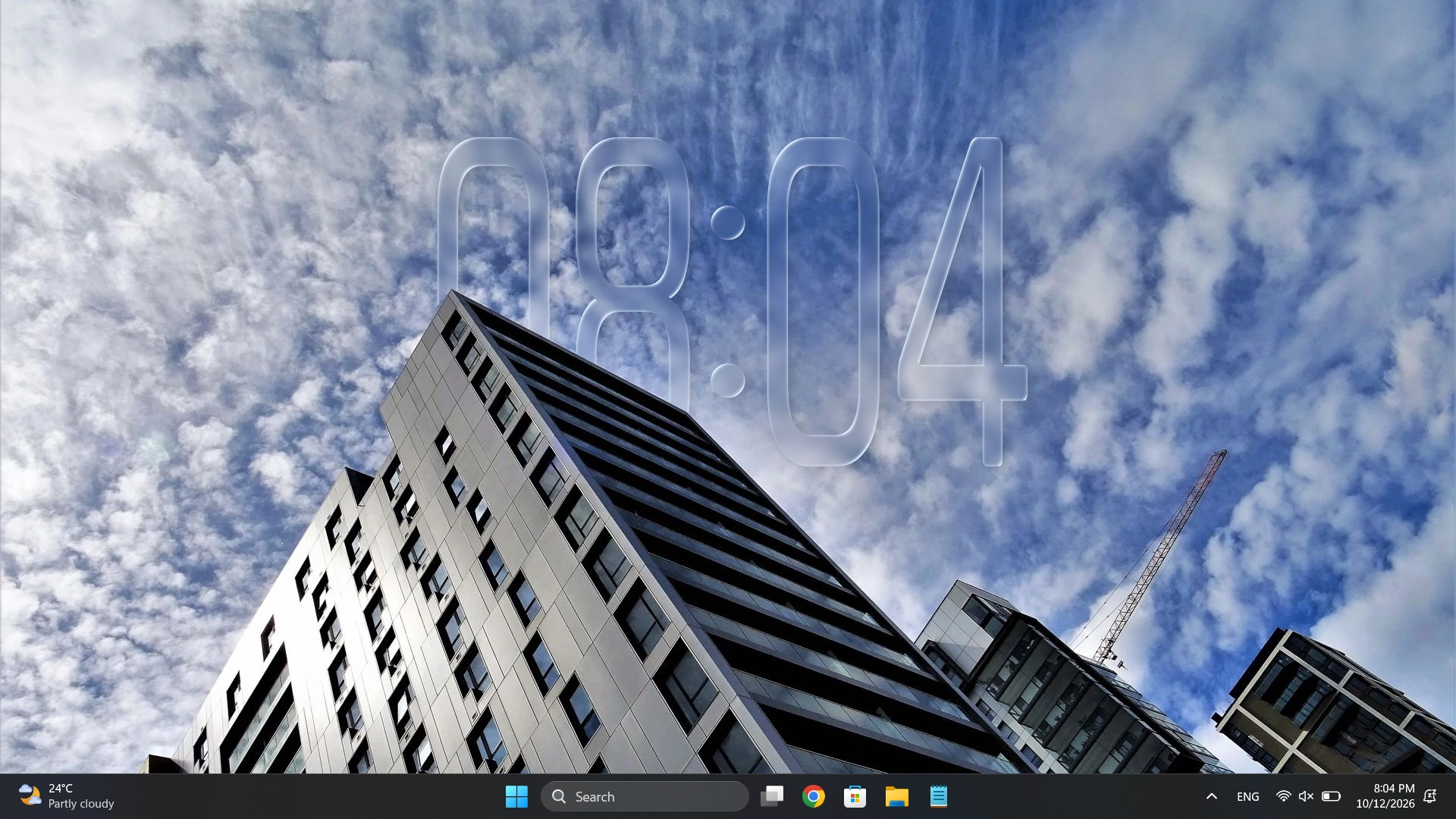
Bright refracted edges and glass-like distortion that follows the wallpaper. Adjust Lens Depth and Light Bend for a stronger glass effect; ease them down for a subtler finish.
Visual styles
The right combination of typography, lens settings, fill and shadow can make the same clock feel entirely different.
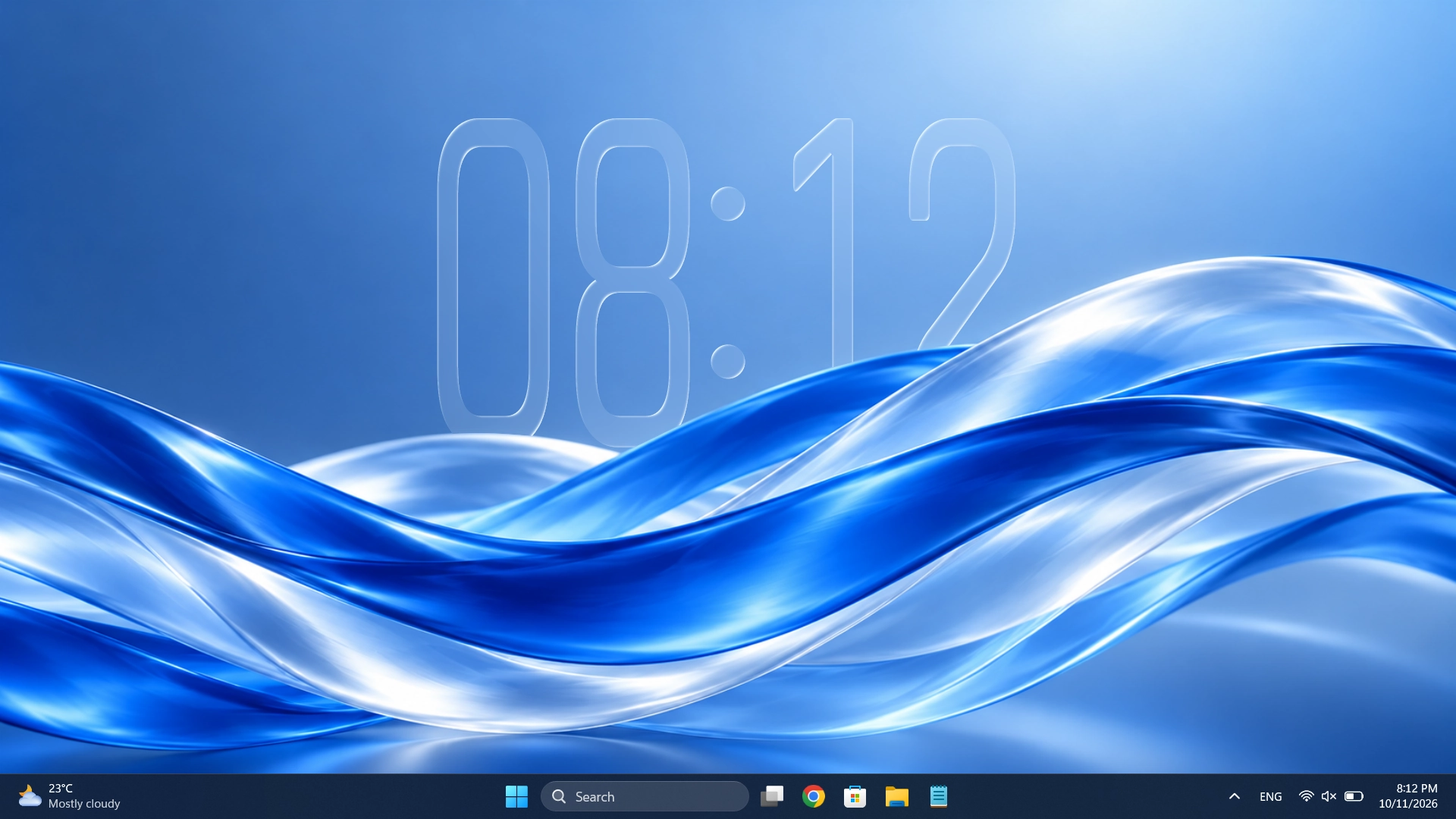
Three ways to style
Compare Prism, Blur and Transparent on the same wallpaper, then combine your preferred style with your own font, fill and edge settings.
Bright refracted edges and glass-like distortion that follows the wallpaper. Adjust Lens Depth and Light Bend for a stronger glass effect; ease them down for a subtler finish.
A softer clock for busy wallpapers. Set Blur Amount, then adjust fill and edge strength until the time remains readable.
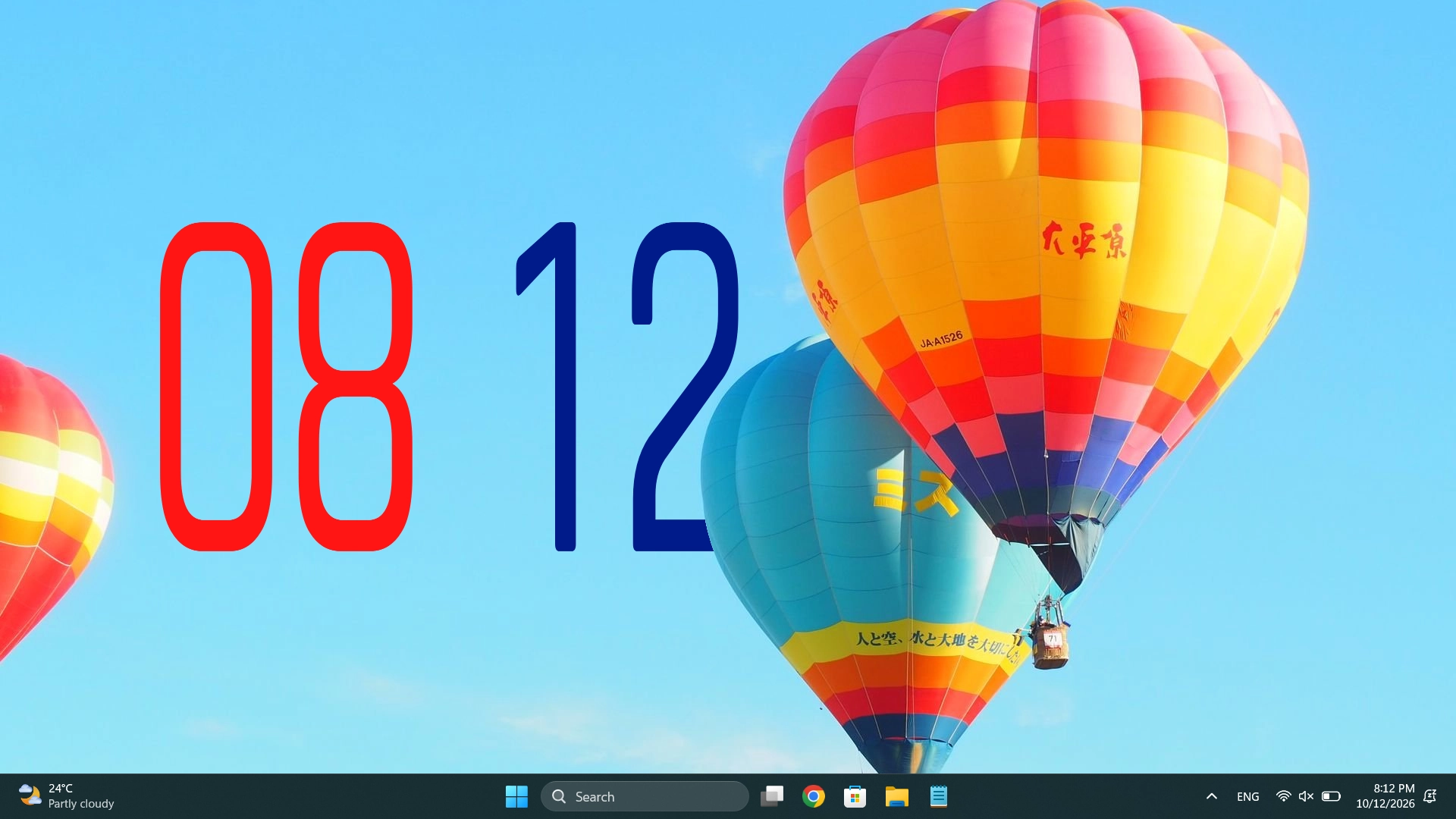
Let the font and color do the work, without glass refraction or blur. Add just enough shadow to separate the clock from the background.
Actual DepthTick captures. Appearance varies with your wallpaper and settings.
Clock shape
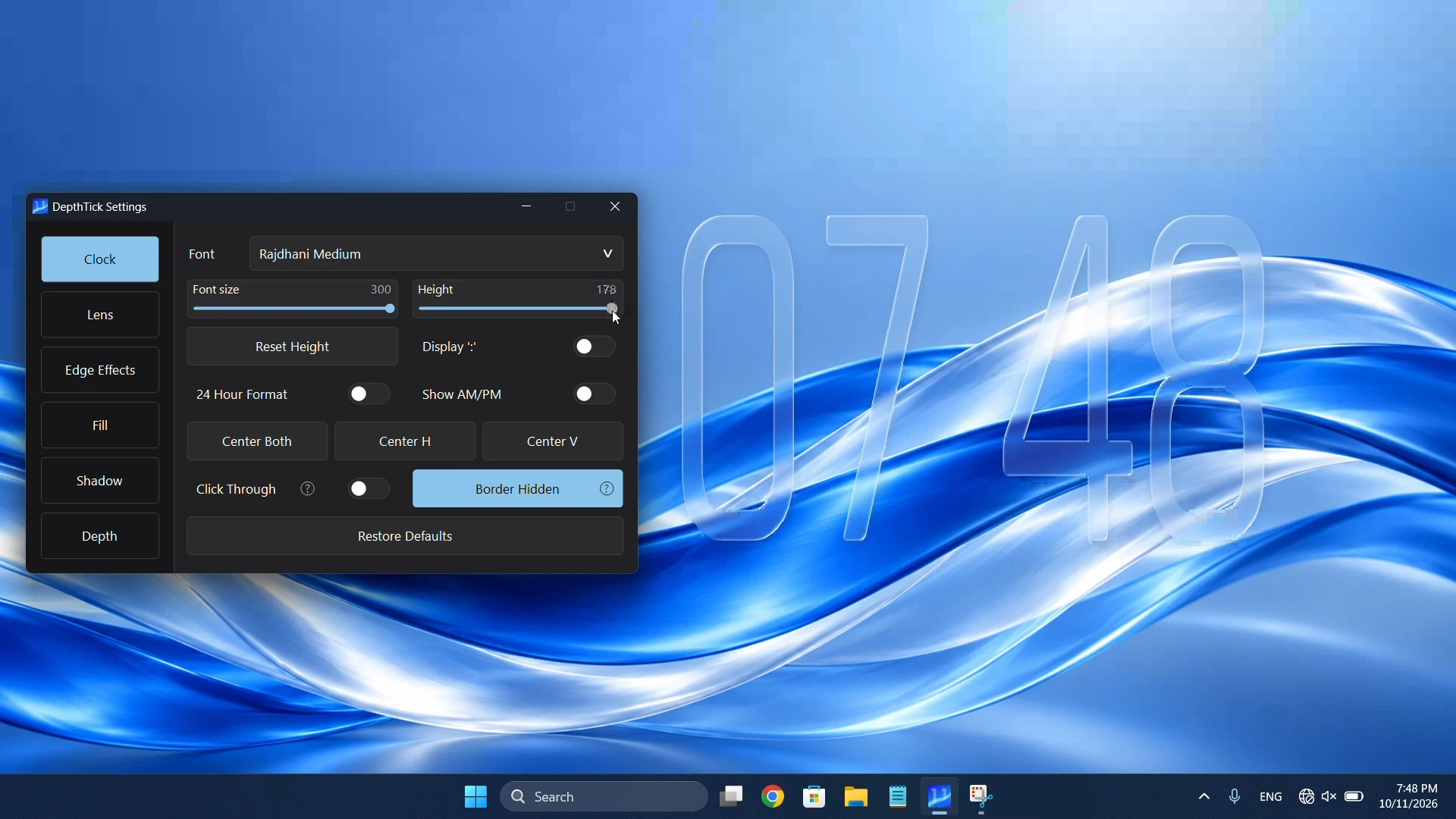
Font size changes the overall scale of the clock. Height stretches or compresses the digits vertically without switching to another font. Use them together to fit the time around the important parts of your wallpaper.
Find the typography controls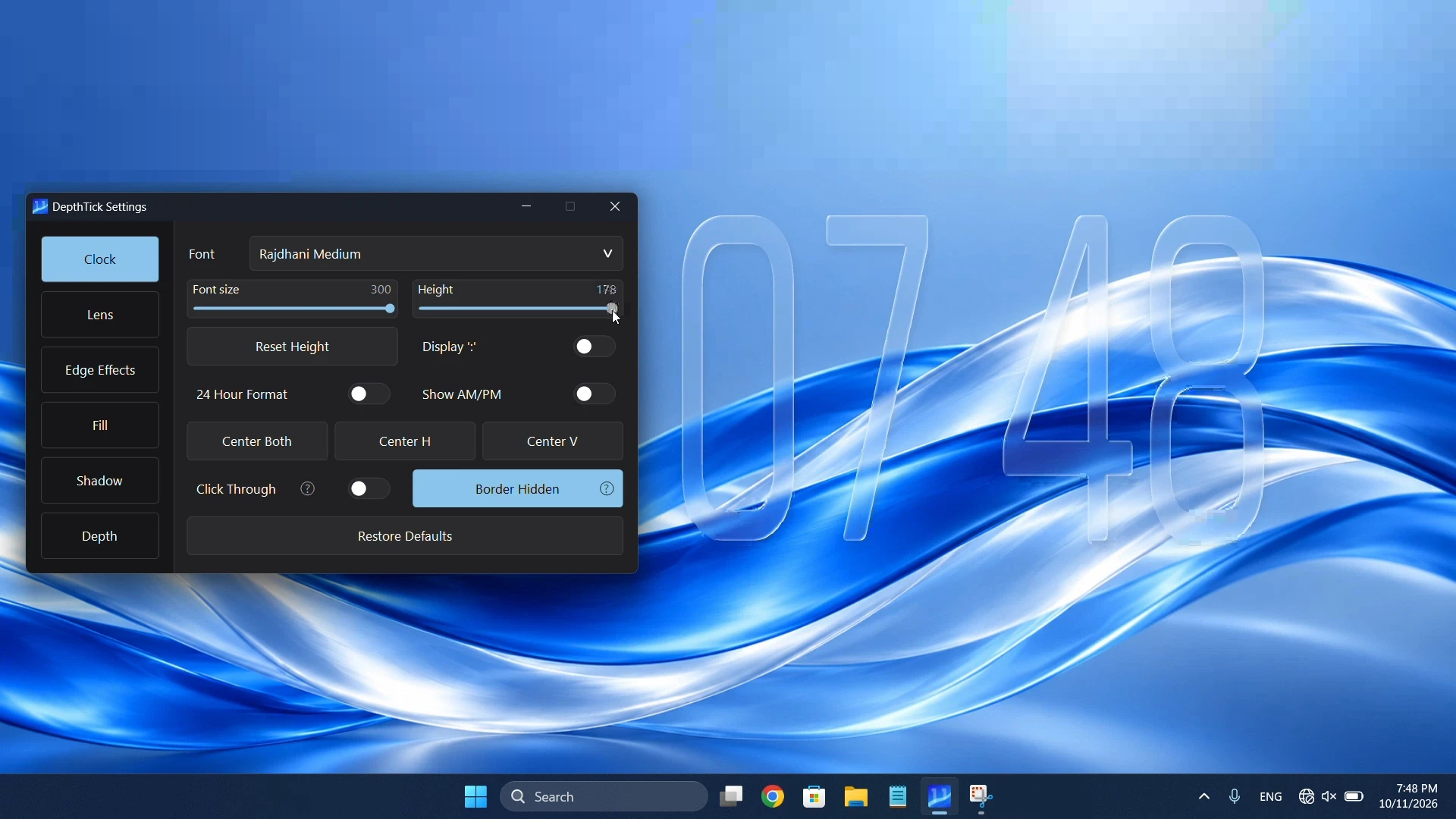
Choose a typeface you like, set a comfortable font size, then adjust Height. Condensed fonts often suit a tall clock; wider fonts can make a smaller clock easier to read.
Clock Height is not Lens Depth. Height changes the digit shape; Lens Depth changes the apparent thickness of the Prism lens.
Use fill opacity, edge highlights or a small shadow if the clock becomes hard to read against your wallpaper.
Color and light
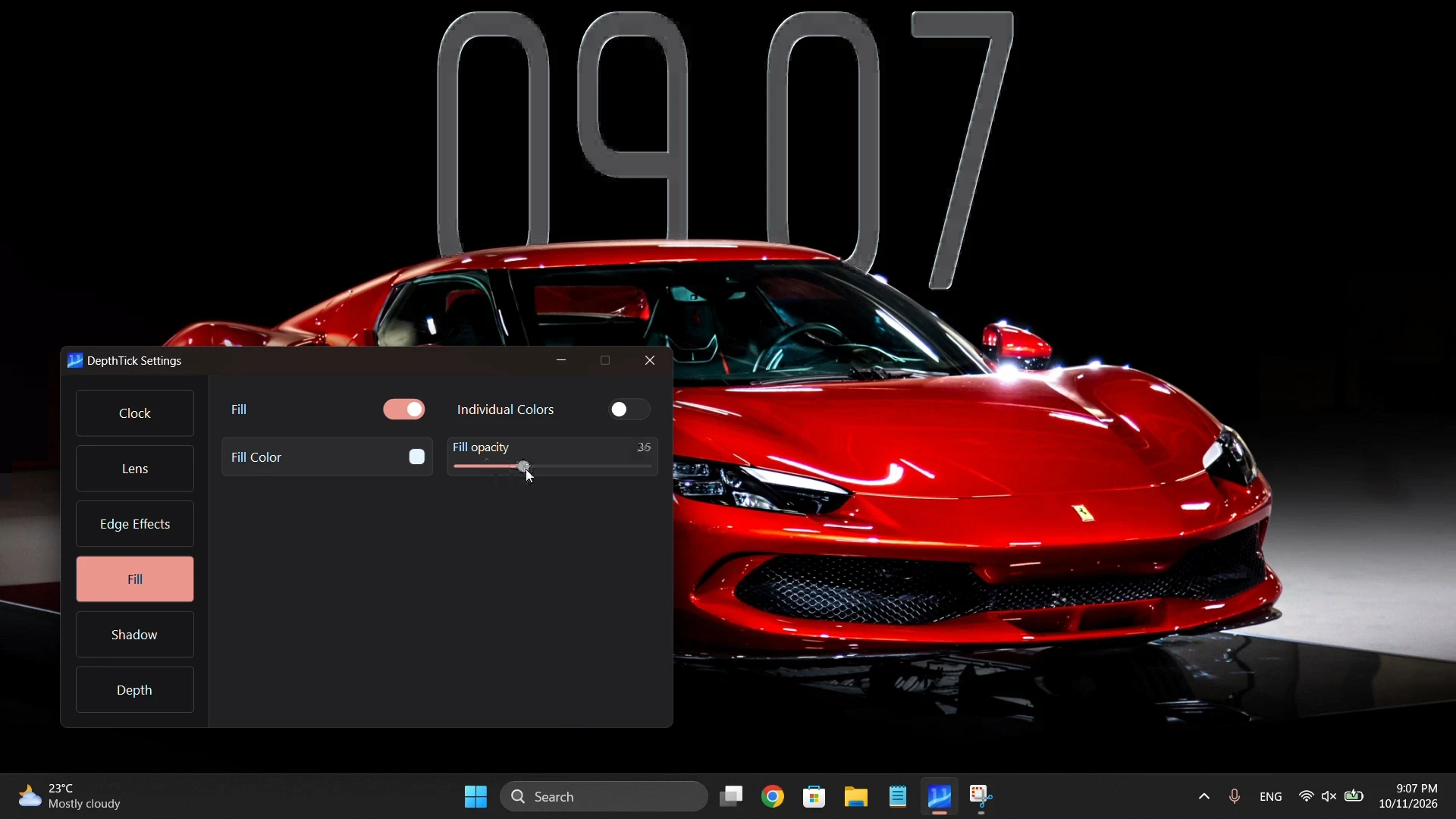
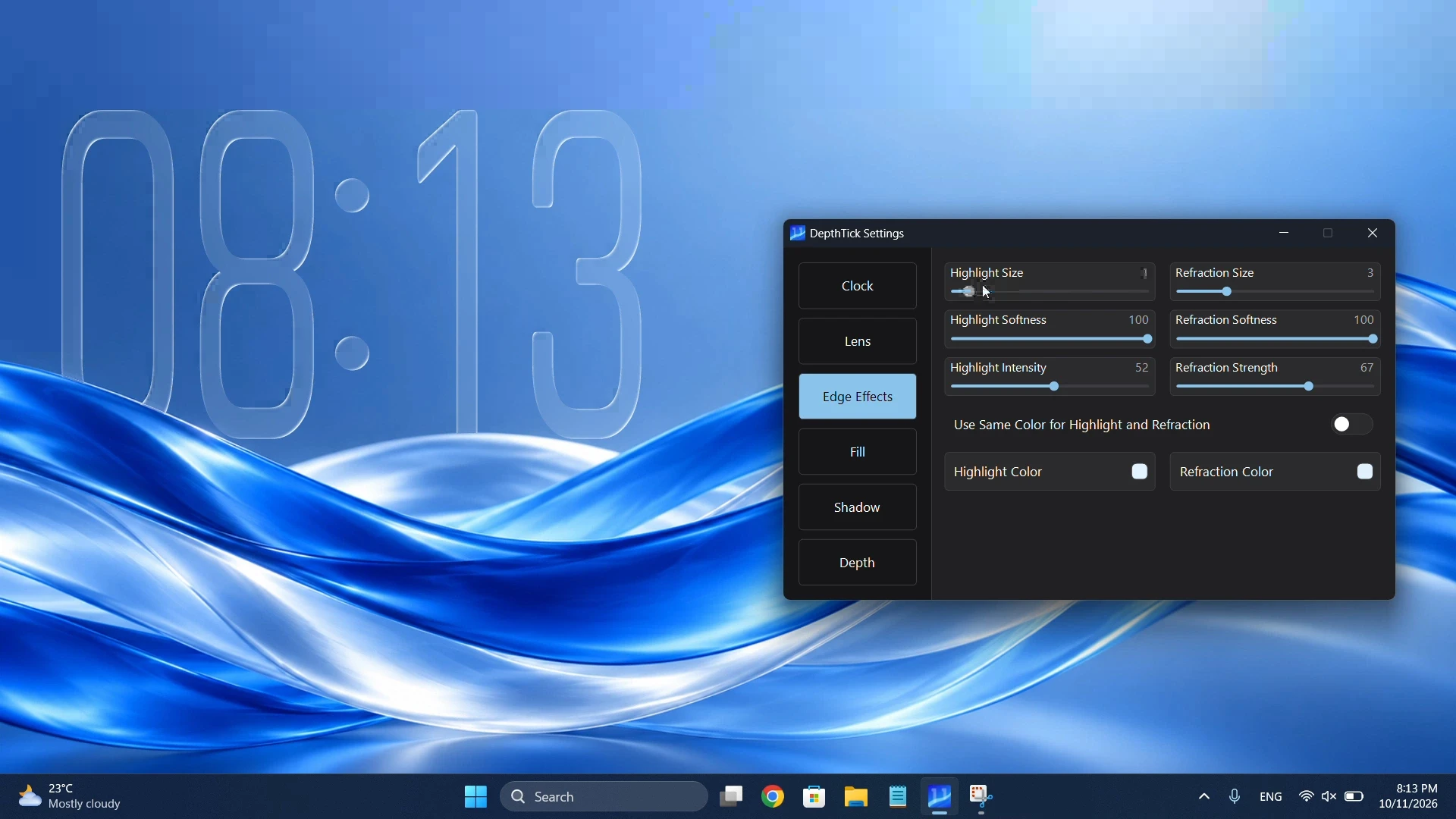
Fill and edge effects work independently. Adjust the body of the clock, then shape the light around it.
Change fill color and opacity for the whole clock, or give the hours, minutes, colon and AM/PM indicator their own look. Use a faint fill for subtle glass or stronger colors for contrast.
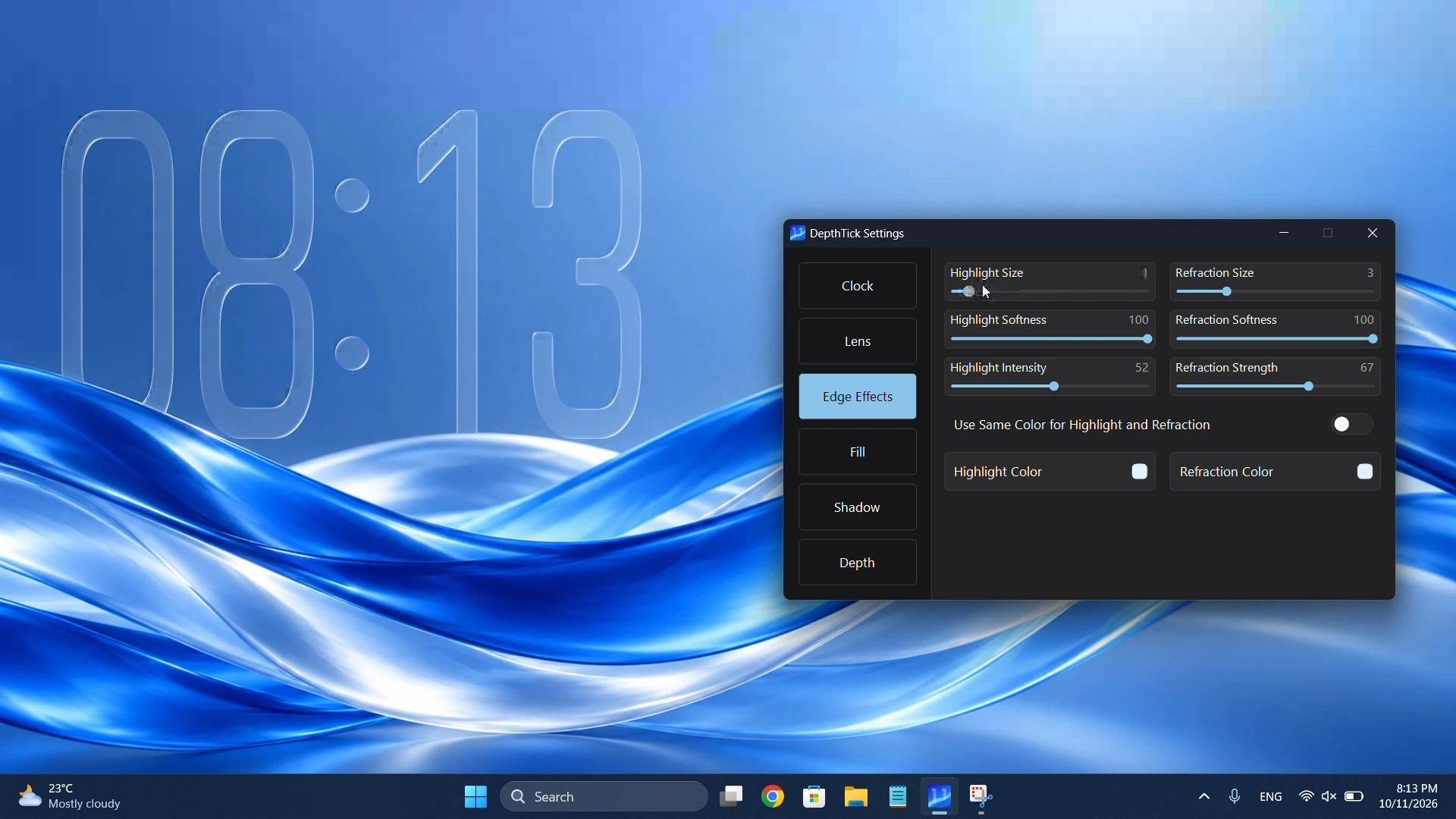
Fine-tune highlight and refraction size, softness, intensity and color. Link the two colors or set them independently, from a restrained outline to a brighter glass finish.
Separation and depth
A subtle shadow can keep the time readable. Wallpaper depth can make it feel like part of the scene.
Adjust shadow strength and horizontal or vertical offset to separate the digits from your wallpaper. Keep it subtle for a light glass finish, or increase it when the background needs more contrast.
Widget depth changes how far back the clock sits in Layered mode and fine-tunes the foreground edge in Object mode. Adjust it after mask generation to suit your wallpaper. It is separate from Lens Depth, which shapes the Prism glass.
Real product captures
The next look is yours
One clock. Your wallpaper. A look that feels completely your own.