
Open settings
Click the DepthTick icon in the Windows system tray to open Settings, or right-click it and choose Settings. Expand the tray's hidden icons if necessary. The tabs are Clock, Lens, Edge Effects, Fill, Shadow and Depth.
Getting started
Find the clock's settings, choose your typography and glass style, then place it around your wallpaper. Depth Effect is enabled by default, with Layered Mode as its starting point.
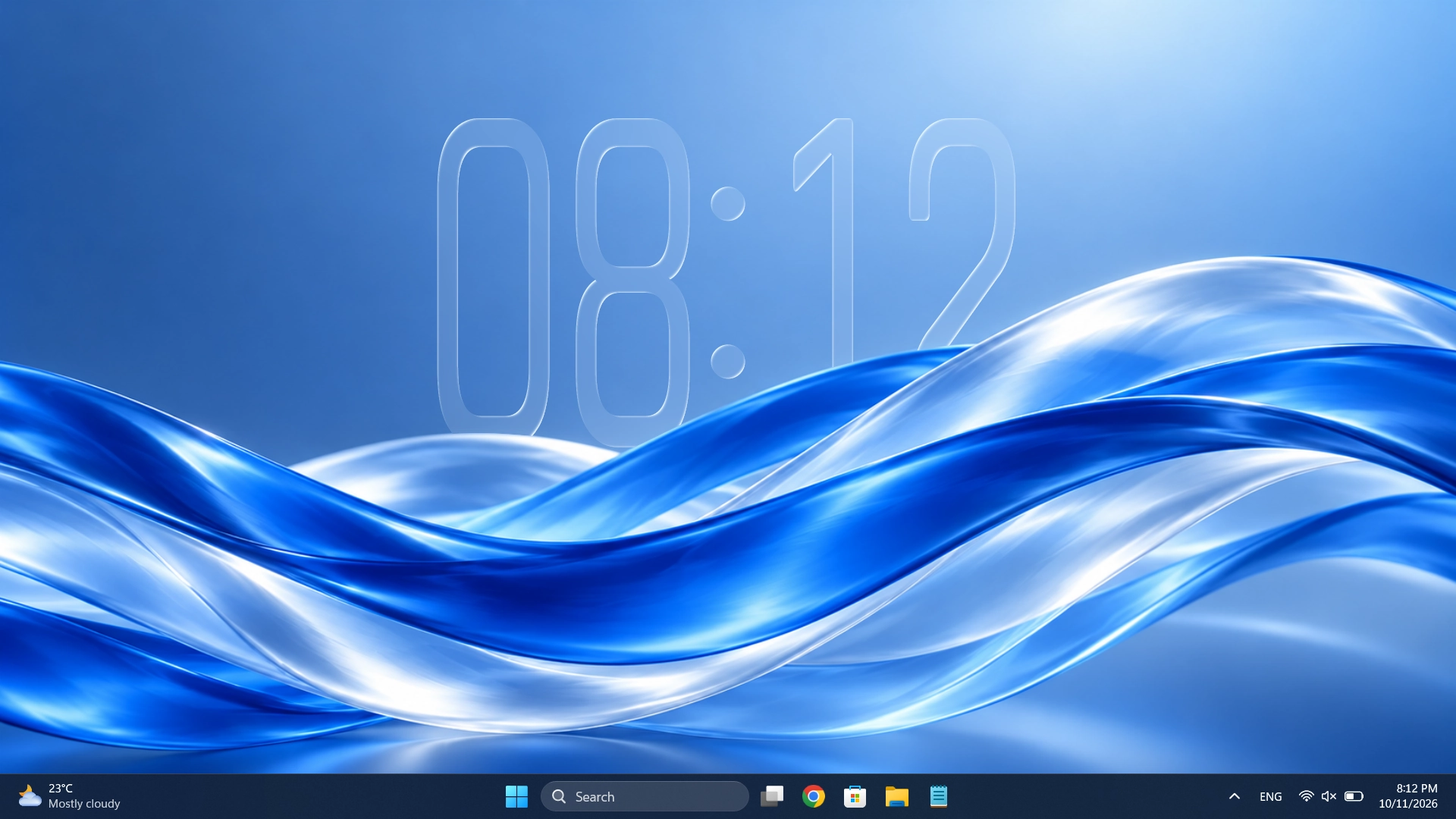
The first five minutes
Install and launch DepthTick from Microsoft Store. It runs as a desktop widget, so Settings are accessed from its tray icon rather than a conventional app window.
Click the DepthTick icon in the Windows system tray to open Settings, or right-click it and choose Settings. Expand the tray's hidden icons if necessary. The tabs are Clock, Lens, Edge Effects, Fill, Shadow and Depth.
Begin with bundled Rajdhani or another installed Windows font. Set font size and Height, then decide on 12-hour or 24-hour format.
In Settings → Lens, use Prism for glass, Blur for a frosted treatment, or Transparent for a clean typographic clock.
Adjust fill opacity, edge intensity and shadow strength so the time stays readable without dominating your wallpaper.
Keep Click Through off while positioning. Drag the clock, or open Settings → Clock and use Center Both, Center H or Center V. Depth Effect is already enabled by default, with Layered Mode as its starting point. If your wallpaper supports depth, allow generation to finish before fine-tuning the overlap.
Open Settings → Depth and use the Widget depth slider. DepthTick attempts a one-time adjustment for each newly generated mask, but may keep the current value if there is little foreground behind the clock. Adjust it manually whenever the result needs refining.
In Layered Mode, lower values bring the clock forward and higher values place more of the scene in front. In Object Mode, use it to fine-tune the cutout edge. At 0, the clock sits in front of the wallpaper. This is not Lens Depth, which changes the Prism glass rather than wallpaper overlap.
See the Widget depth demoAfter positioning the clock, enable Click Through in Settings → Clock to let mouse clicks reach the desktop underneath. The clock remains visible. Turn it off again before dragging; you can also toggle it from the tray icon's right-click menu.
Click-through
Click Through changes how the clock responds to mouse input, not whether it is visible. Disable it in Settings → Clock or the tray menu before dragging. Opening Settings alone does not switch it off.
When depth needs adjusting
If foreground details hide too much of the clock, lower Widget depth or move the clock away from the foreground. Hidden area limit is a separate visibility safeguard: lowering it bypasses the cutout sooner when too much of the clock would be covered. At 0, no depth cutout is applied; the Depth Effect toggle may still be on. Moving the clock or restarting does not repeatedly auto-tune your saved depth setting.
Understand Hidden area limitThe next look is yours
Start simple. Make it yours as you go.