Performance & privacy
Local processing. Clear expectations.
Wallpaper sampling and depth generation happen on your PC, not through a cloud-based rendering service.
MEMORY / TEST SYSTEM<200 MBTypical normal-use memory observed on the developer test machine.
IDLE CPU / TEST SYSTEM~0%Typical CPU use at idle on that same test machine.
DEPTH PROCESSINGLocalYour wallpaper is processed on your own computer.
These figures are observations from one developer test setup, not guaranteed limits. Results vary with wallpaper, resolution, monitor count, settings and hardware.
Normal use vs. generation
Heavier when creating.
Lighter after.
DepthTick uses more resources while building or refreshing a mask, for example after a wallpaper change or when a display has not yet been prepared. It reuses saved masks in regular use. Generation can take several seconds or longer on older or busy systems; moving to a monitor with a valid cache does not require a fresh generation.
DepthTick selects CPU or GPU processing based on the available hardware and can fall back when needed. Solid colors, smooth gradients and images with insufficient depth evidence may be skipped. During an active slideshow changing every minute or faster, depth pauses to avoid repeatedly generating masks.
Wallpaper-aware rendering
Sampling without uploading.
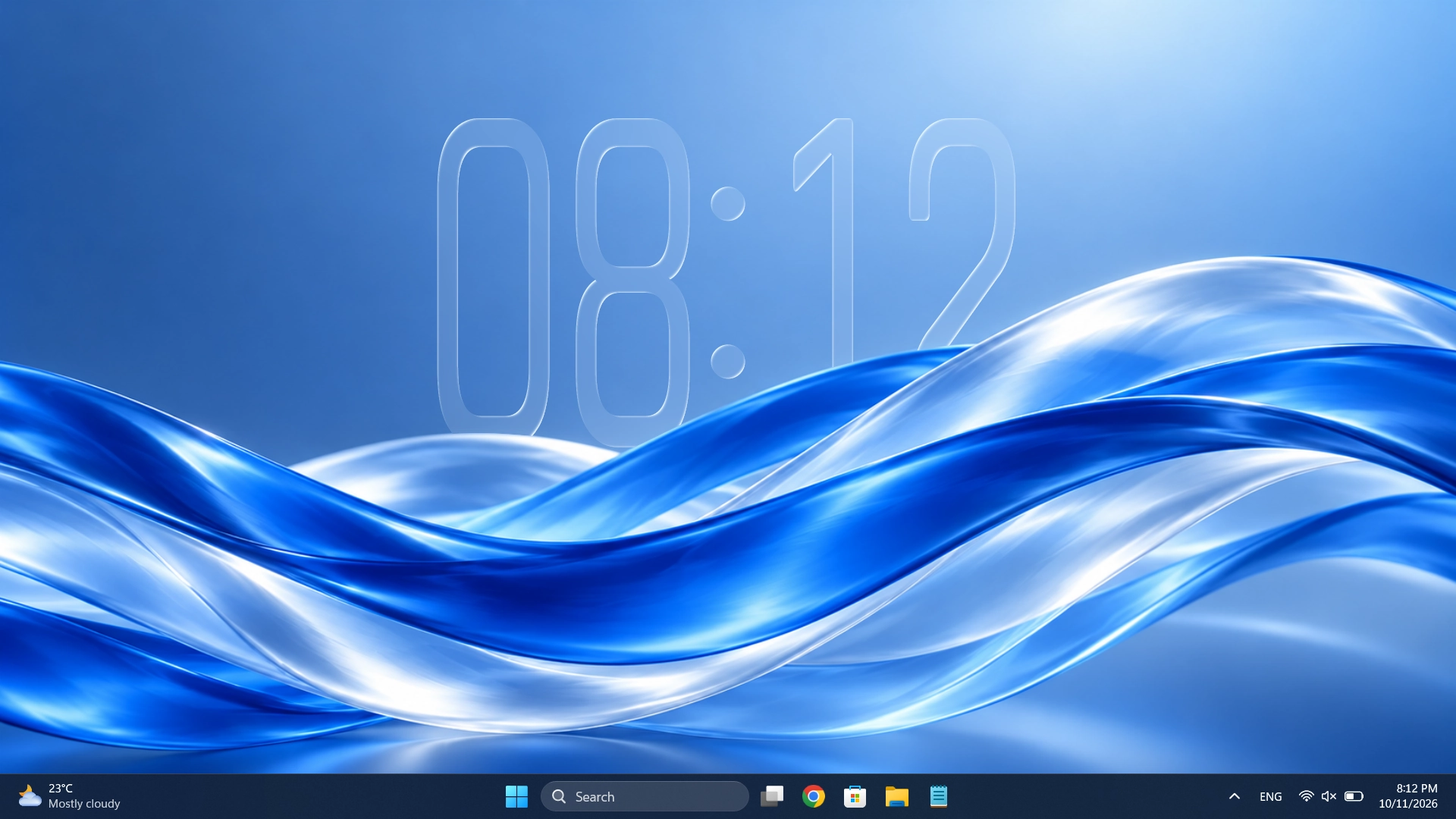
Prism and Blur sample desktop imagery behind the clock. Depth generation analyzes wallpaper images, while desktop sampling can help align the cutout with the displayed background. This image processing is performed locally.
Desktop captures and wallpaper images are processed on your device. DepthTick does not record video or upload this imagery to a cloud depth service. Local wallpaper references and masks may be saved for reuse. Read the full privacy policy for storage and Microsoft-service details.
System requirements
A Windows desktop, with compatible graphics.
- Windows
- Windows 10 version 1809 or later, or Windows 11. The current package targets x64 processors.
- Graphics
- A DirectX 11-capable GPU supporting hardware feature level 11.0. Compatible integrated graphics can run the clock; a discrete GPU is not mandatory.
- Depth generation
- CPU or GPU processing is selected automatically. Generation speed and peak memory use vary with the processing needed, display resolution and available resources.
- Display behavior
- On slower hardware, dragging uses a lighter preview. The full lens and depth appearance returns when you release the clock.
i
Windows capture indicator
Why you may see a yellow border.
Windows may show a privacy border (a yellow outline around the screen) while desktop imagery is being captured for wallpaper effects. Processing stays local. In Settings → Clock, choose Hide Border to ask Windows for permission to hide it. You may decline; the clock still works with the border visible. Hiding it changes the indicator, not how the imagery is processed.
The next look is yours
Make your desktop yours.
One clock. Your wallpaper. A look that feels completely your own.