Feature overview

Customize your desktop clock.

Build your own look instead of choosing a fixed preset. Adjust typography, glass, colors, shadows and wallpaper depth independently to suit your desktop.

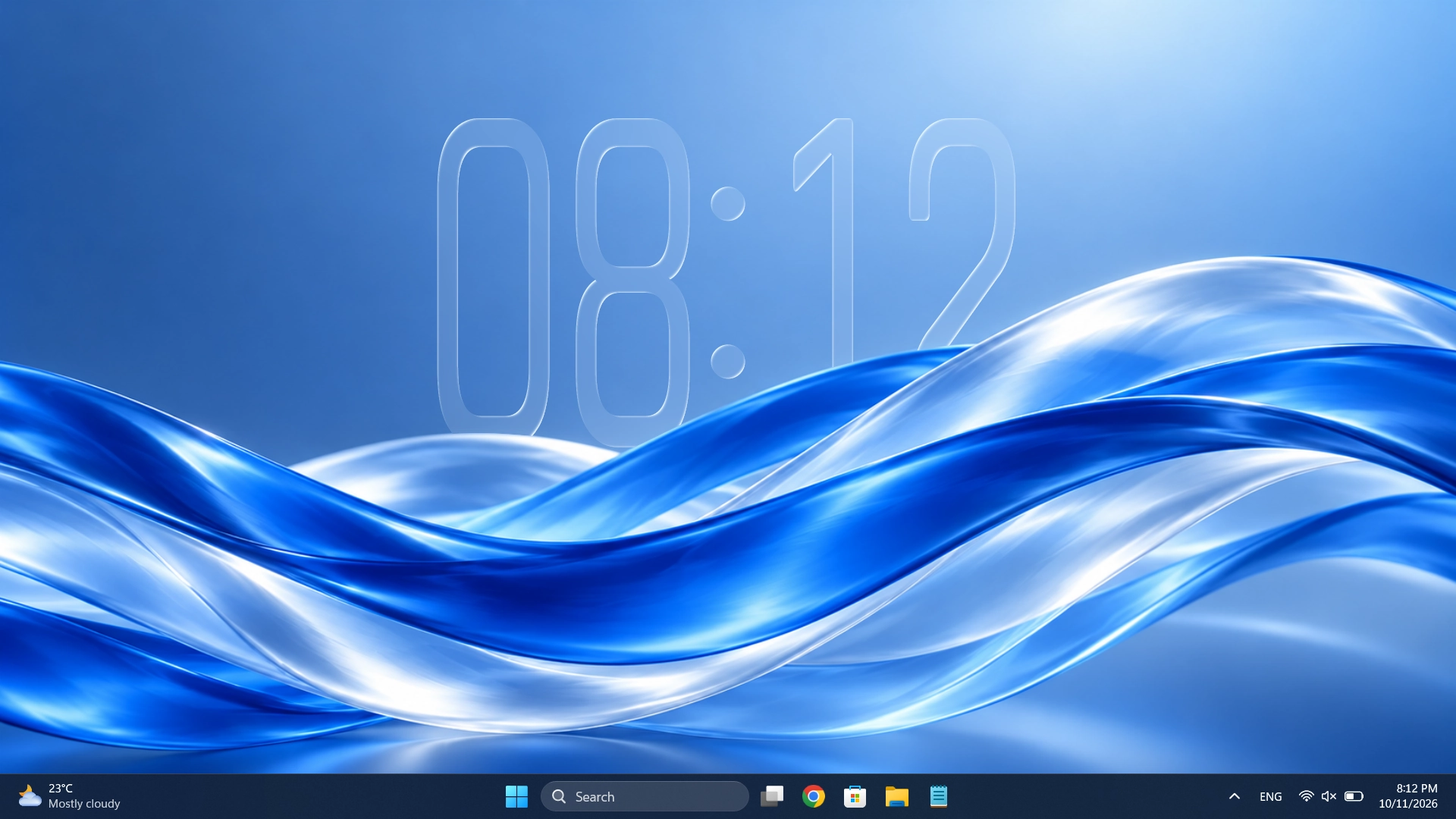
DepthTick running on Windows desktop

Designed around you

Start with the clock. Make it yours.

TYPE & TIME

Every font changes the mood.

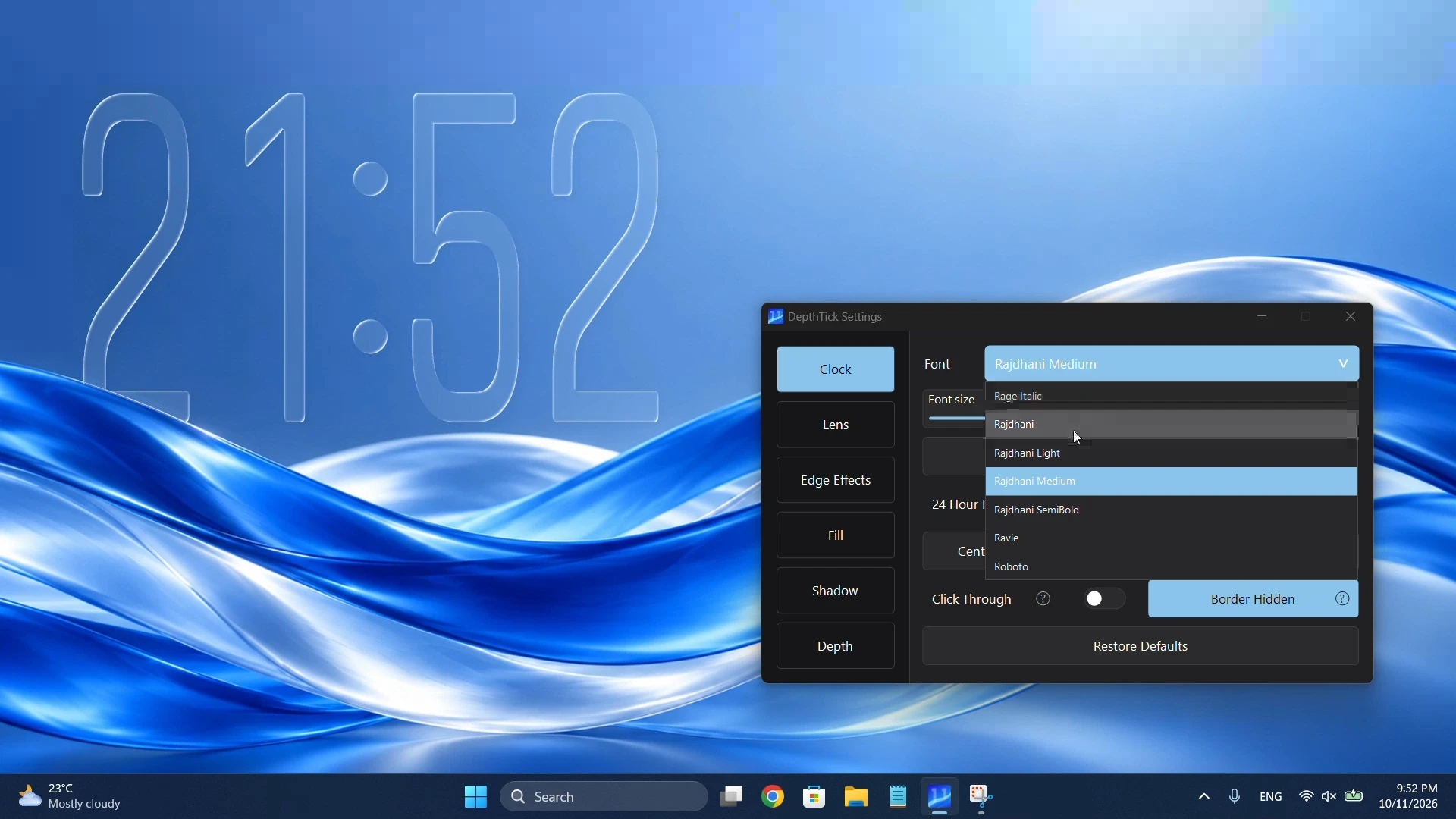
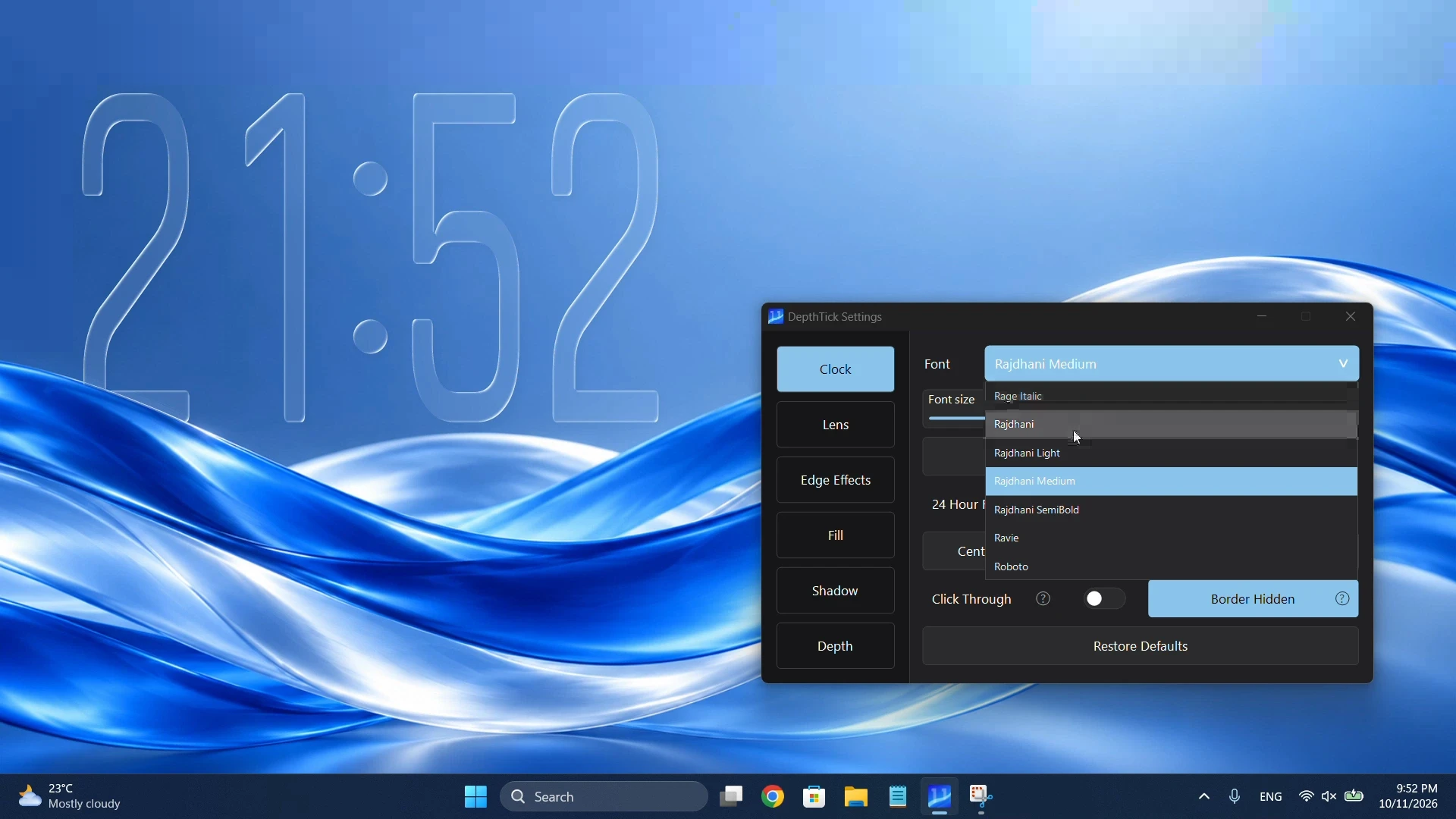
Use the included Rajdhani family or almost any installed Windows font. Adjust size and vertical height, choose 12- or 24-hour time, show or hide the colon and AM/PM, and apply colors to different time elements.

Your font sets the character of the clock.
POSITION & BEHAVIOR

Placed exactly where you want it.

Drag the widget into position, center it horizontally or vertically, or turn on click-through so desktop clicks pass straight through the clock. Manage its startup behavior through Windows startup-app settings.

Three visual approaches

From optical glass to barely-there.

Prism, Blur and Transparent change how the clock interacts with the wallpaper.

P

Prism glass

Samples the wallpaper to refract light through the clock. Shape it with Lens Depth, Lens Shape, Light Bend and edge highlights.

B

Soft blur

Creates a frosted, readable feel for visually busy or highly detailed backgrounds. Adjust the blur strength to fit the scene.

T

Transparent

Uses clock shape, font, fill and shadow without the wallpaper-sampling glass or blur effect.

Compare the visual modes

The little things

Every adjustment matters.

Lens

Lens Depth, Lens Shape, Light Bend and Blur Amount shape how the clock interacts with your wallpaper.

Edge Effects

Control highlight size, softness and intensity, plus refraction strength, color and spread.

See edge effects

Fill

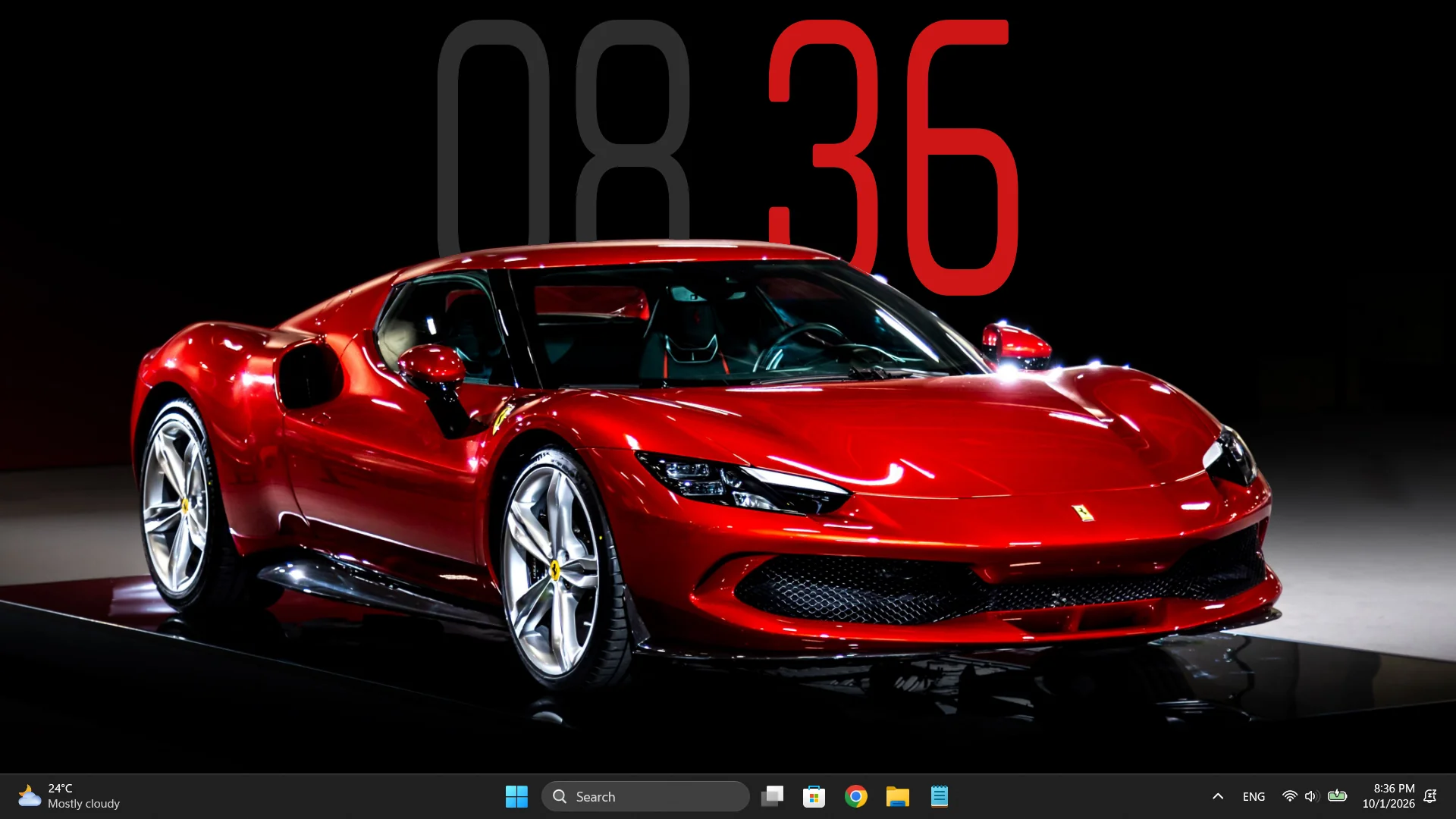
Choose opacity, a unified fill, or individual colors for hours, minutes, colon and AM/PM.

See fill controls

Shadow

Dial in shadow strength and X/Y offset for comfortable readability.

Depth Effect

Layered and Object modes, an optional 2D Art toggle, Widget depth fine-tuning and a Hidden area limit.

Learn more

Multiple monitors

Choose Current Monitor to prepare the display the clock is on, or All Monitors to prepare every connected display.

Find your setting

Six tabs. One look that is yours.

Click the DepthTick icon in the Windows system tray to open Settings. The controls are grouped around the part of the clock you want to change.

Clock
Choose an installed font, font size and vertical height. Set 12/24-hour time, AM/PM and the colon; center the clock or enable Click Through.
Lens
Choose Prism, Blur or Transparent. Prism exposes Lens Depth, Lens Shape and Light Bend; Blur exposes Blur Amount.
Edge Effects
Set the size, softness, intensity and color of highlights and refraction. Link their colors or adjust them separately.
Fill
Turn the fill on or off, choose its color and opacity, or give the hours, minutes, colon and AM/PM indicator individual colors and opacity.
Shadow
Adjust horizontal and vertical offsets and shadow strength to separate the digits from the wallpaper.
Depth
Choose Layered or Object Mode, try the 2D Art toggle, set Widget depth and Hidden area limit, or prepare depth for your monitors.

Made for your desktop

Make it subtle.
Make it a statement.

One widget can be a quiet glass accent or the defining element of a whole desktop setup. You decide how far to take it.

Get started

The next look is yours

A little more personality for your desktop.

Give the clock the same attention you give your wallpaper.